
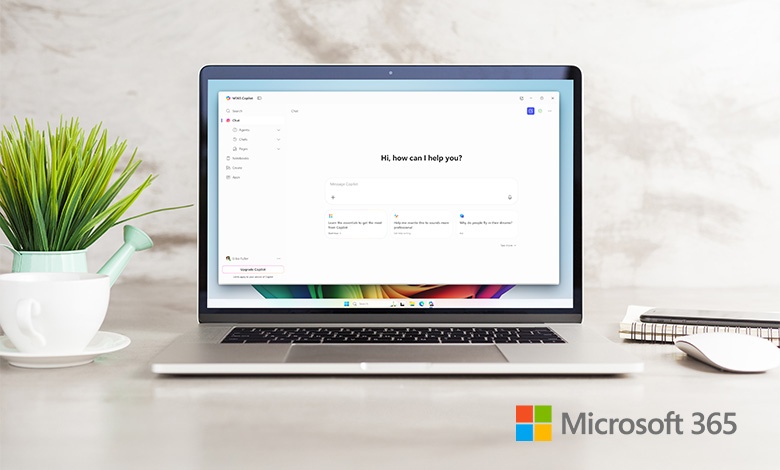
Every organization is looking for smarter ways to work—how to communicate clearly, reduce manual tasks, and focus on what really matters. Copilot Chat in Microsoft 365 brings that possibility to life. Acting as your built-in AI assistant, Copilot Chat helps you summarize, brainstorm, and execute tasks more efficiently across the apps you already use every day.
Whether you’re drafting an email in Outlook, analyzing numbers in Excel, or recapping a meeting in Teams, Copilot Chat is there to lighten the load. For business leaders and IT decision-makers, it’s a secure, enterprise-ready step into the world of AI-assisted productivity.
What Is Copilot Chat and How Does It Work?
Think of Copilot Chat as a digital coworker that can understand and respond to everyday language. Instead of needing commands or code, you can simply type or speak a command like, “Summarize this document,” or “Create a report using these notes.”
Behind the scenes, Copilot Chat draws from the information you already have in your organization—emails, documents, chats, and calendars—while respecting the same permissions and security policies your Microsoft 365 environment uses. That means it can only access the files you’re authorized to see.
Copilot Chat doesn’t use your company’s information to train its underlying AI models, and conversations stay within your secure Microsoft 365 tenant. The result is a trusted, Microsoft AI chat bot that helps you make sense of your workday without risking privacy or compliance.
What Can an AI Assistant Do in Everyday Work?
Copilot Chat is more than a chatbot; it’s a capabilities-driven AI assistant designed for real-world tasks. With every interaction, you’re freeing up more time for creativity, decision-making, and strategy.
It can help you:
- Summarize and condense information. Turn long emails, threads, or meeting transcripts into concise takeaways with clear action items.
- Draft and rewrite content. From emails and proposals to reports and newsletters, Copilot Chat can suggest outlines, adjust tone, or polish your writing.
- Analyze and visualize data. Ask questions about your spreadsheets and watch it generate tables, charts, and formulas instantly.
- Create presentations. Transform Word documents or meeting notes into ready-to-edit slides with speaker prompts and summaries.
- Answer questions. Need to locate a specific file or recall key project details? Just ask. Copilot Chat retrieves answers from content you already have permission to access.
Why Microsoft Copilot Inside Microsoft 365?
Unlike many AI chat tools that require switching between apps or sharing external data, Copilot Chat works where you already work. It’s embedded across Word, Excel, PowerPoint, Teams, and Outlook.
Because it operates inside Microsoft 365, Copilot Chat follows your organization’s security, compliance, and identity controls. Plus, Microsoft offers guided learning paths and weekly challenges that help users gain confidence in prompt writing and AI-assisted collaboration.
Do You Need a License for Copilot Chat?
Yes. Accessing Copilot Chat requires signing in with a work account and having the proper Microsoft 365 Copilot license. Administrators control which users and departments can enable the service, ensuring consistent governance and data management.
For organizations exploring Copilot Chat for the first time, this is an ideal moment to start a pilot program—and Connection can help. New customers may be eligible for 15% offprofessional services, making it easier to plan, configure, and deploy Copilot Chat securely within your Microsoft 365 environment.
Organizations can find detailed information on access, licensing, and setup in Microsoft’s Learn Copilot Chat resources—an excellent starting point for IT leaders introducing AI assistance company-wide.
How to Log in and Get Started
Getting started is simple:
- Sign in to your Microsoft 365 account using your work credentials.
- Verify that your organization’s administrator has enabled Microsoft 365 Copilot services.
- Open your preferred app—Word, Outlook, Excel, or Teams—and look for the Copilot Chat icon.
- Try requesting something like “Summarize this email thread” or “List next steps from our last meeting.”
Within moments, Copilot Chat begins responding in context, helping you explore how AI-assisted productivity fits into your daily routine.
What Are the Capabilities of an AI Assistant Like Copilot Chat?
Copilot Chat’s strength lies in its range of AI-powered capabilities, which work together to simplify tasks and boost focus:
- Drafting and rewriting: Create polished emails, proposals, and reports in less time.
- Summarizing and extracting: Highlight the most important points from meetings, chats, or documents.
- Data analysis: Ask questions about spreadsheets and visualize insights through charts and tables.
- Presentation creation: Generate PowerPoint slides and speaker notes directly from Word or Teams content.
You can even use Copilot Chat to learn how to use it better. The more you explore, the smarter your prompts become. Ask it for prompt guidance, such as tips on how to phrase questions or requests more effectively, to unlock stronger, more accurate results. Over time, it becomes a learning cycle that helps employees build skill and confidence using AI across their daily workflows.
Is Copilot Chat Like ChatGPT?
Copilot Chat and ChatGPT share similar foundations in large language model technology, but they’re not the same. Copilot Chat is integrated directly into Microsoft 365, meaning it’s governed by enterprise-grade privacy and security policies.
Cornell University explains that Copilot operates within Cornell’s Microsoft 365 environment and adheres to data protection and governance policies, reinforcing Microsoft’s commitment to privacy and compliance, providing a secure space to explore the benefits of AI in everyday work. You can think of it as ChatGPT’s professional counterpart, built specifically for secure business use within Microsoft tools.
Common Questions About Copilot Chat
What is Copilot Chat in Microsoft 365?
It’s an AI-powered assistant built into Microsoft 365 that helps you summarize, draft, and analyze information across your organization’s apps and data.
How does AI-assisted chat improve productivity?
By reducing time spent on repetitive tasks—like summarizing meetings, writing reports, or finding key details—so teams can focus on higher-value work.
Do I need a license for the Copilot app?
Yes. You must sign in with your work account and have the appropriate Microsoft 365 Copilot license enabled by your admin.
Where do I sign in for Microsoft Copilot?
Go to your Microsoft 365 dashboard and sign in with your work credentials. Once enabled, you’ll see the Copilot icon in supported apps.
What can a copilot do with my files?
Copilot Chat only works with the content you have access to and operates within your organization’s security settings.
How good is Copilot for proposals, meetings, and reports?
It’s particularly strong in those areas. You can generate outlines, summaries, and next steps instantly, and save hours of manual editing.
Fun fact: As many organizations test these capabilities, eligible new customers can take advantage of a 15% discount on Copilot licenses, minimum purchase of 10 (max. 2,500 seats). This is a great opportunity to explore Copilot Chat implementation and AI adoption strategies with expert guidance.
Bringing AI Assistance into Daily Work
Copilot Chat brings together the power of AI and the familiarity of the tools employees already use. It helps transform repetitive, time-consuming work into actionable insights and polished results, without leaving the Microsoft ecosystem.
By starting small, like trying a few repeatable tasks and tracking time saved, organizations can quickly measure impact. And with Connection’s expertise in AI enablement, deployment, and security, your team can move forward confidently, knowing that the technology truly works for you.